
安装 go
下载 go
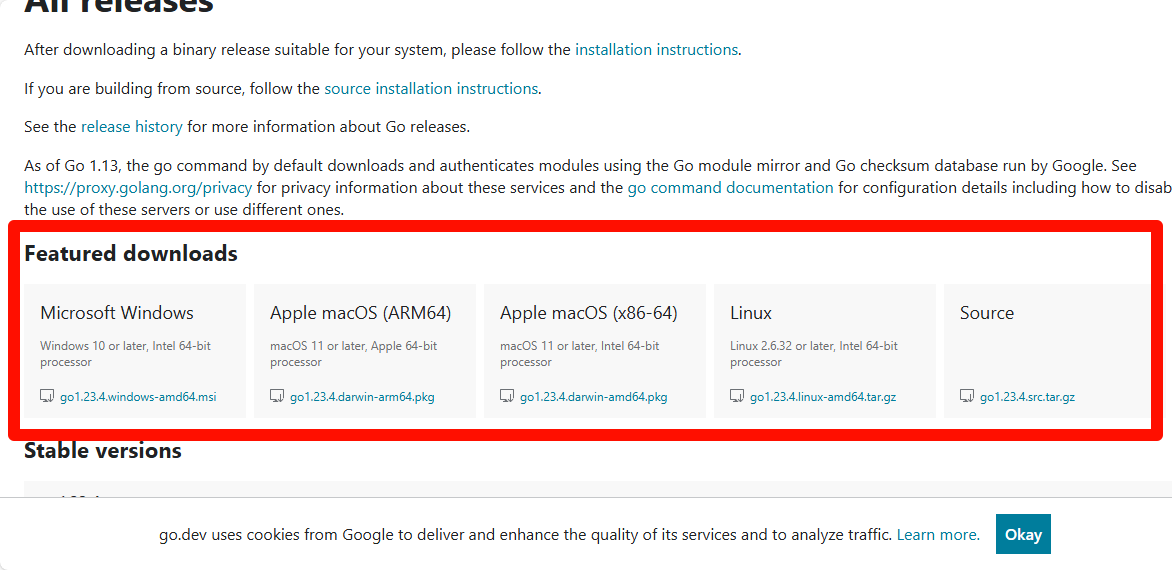
访问 Go 官网 下载对应系统的安装包
验证 go 是否安装成功
查看 go 版本
shell
go version查看 go 环境变量
shell
go env安装 VS Code 代码编辑器
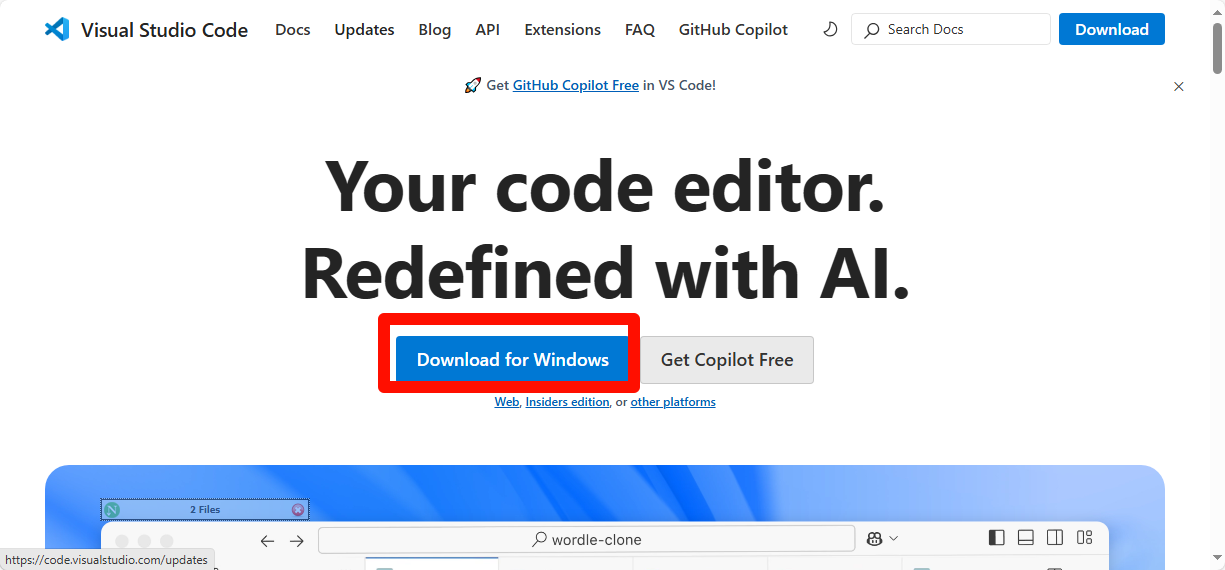
访问 VS Code 官网 下载对应系统的安装包
汉化 VS Code
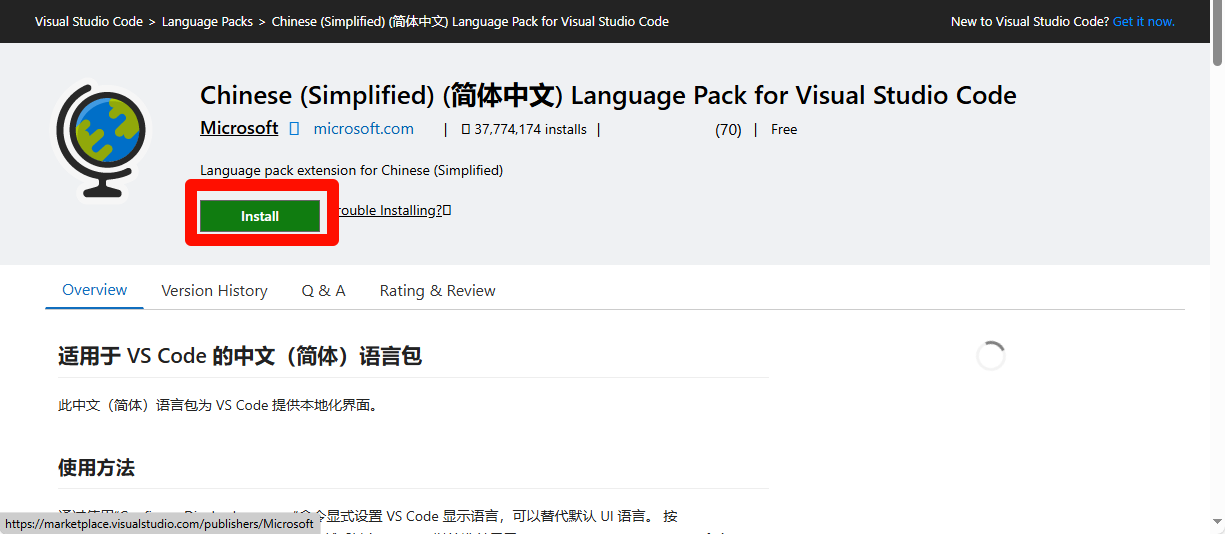
安装插件 简体中文语言包
安装 Go 插件
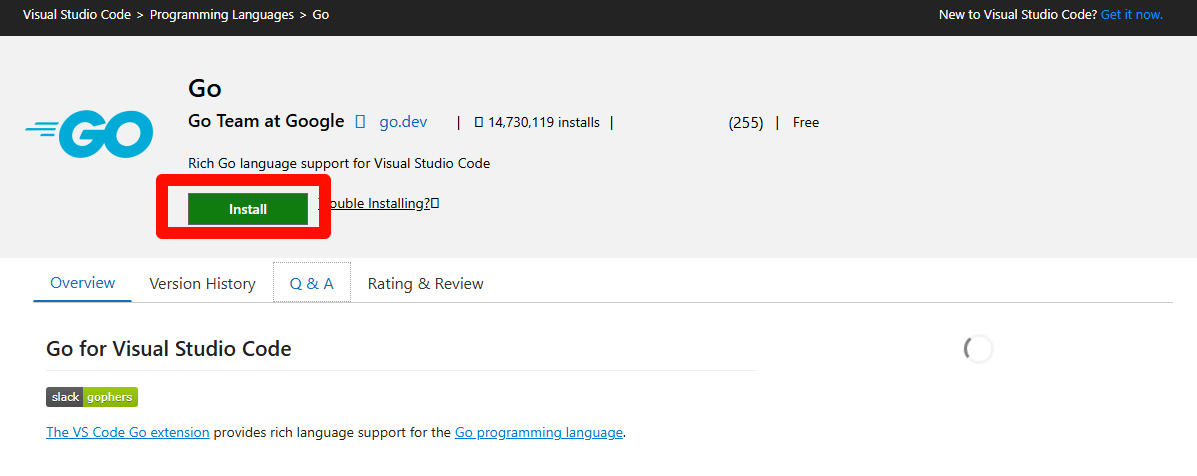
安装插件 Go
安装代码运行插件
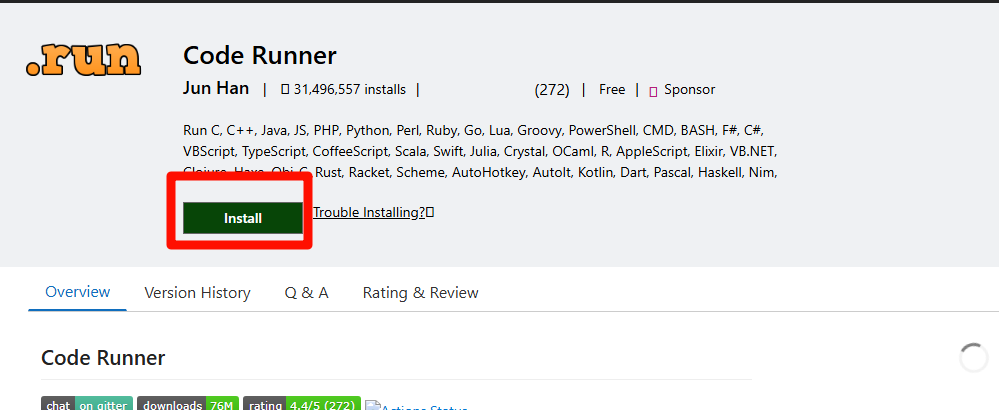
安装插件 Code Runner
导入 VS Code 配置
打开 VS Code
使用
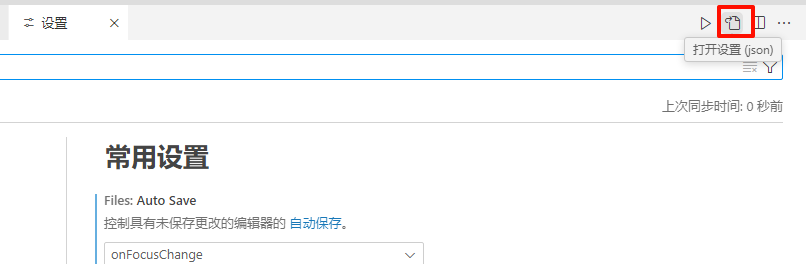
Ctrl+,打开设置点击右上角的图标,打开设置 (JSON)
复制以下内容到设置 JSON 中
json{ "editor.cursorBlinking": "smooth", "editor.cursorSmoothCaretAnimation": "on", "editor.fontSize": 20, "editor.formatOnPaste": true, "editor.formatOnSave": true, "editor.formatOnType": true, "editor.guides.bracketPairs": "active", "editor.linkedEditing": true, "editor.smoothScrolling": true, "editor.stickyTabStops": true, "editor.tabSize": 2, "files.autoSave": "onFocusChange", "git.autofetch": true, "git.confirmSync": false, "git.enableSmartCommit": true, "go.toolsManagement.autoUpdate": true, "terminal.integrated.smoothScrolling": true, "terminal.integrated.stickyScroll.enabled": true, "workbench.list.smoothScrolling": true, "terminal.integrated.cursorBlinking": true, "terminal.integrated.cursorStyle": "line", "[go]": { "editor.defaultFormatter": "golang.go" }, "code-runner.saveFileBeforeRun": true, "code-runner.saveAllFilesBeforeRun": true, "editor.gotoLocation.multipleDefinitions": "goto", "chat.commandCenter.enabled": false }
开始编写代码
传统方式
在任意位置新建一个文件夹来存放你的代码
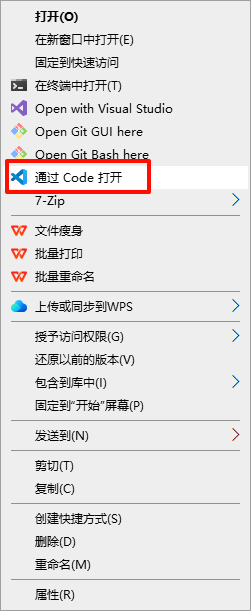
右键此文件夹,选择“通过 Code 打开”
在 VS Code 中新建一个文件,命名为
main.gogopackage main import "fmt" func main() { fmt.Println("Hello, World!") }运行代码
shellgo run main.go编译代码
shellgo build main.go # 编译生成可执行文件 ./main # 运行可执行文件
新方式
在任意位置新建一个文件夹来存放你的代码
右键此文件夹,选择“通过 Code 打开”
在 VS Code 中新建一个文件,命名为
main.gogopackage main import "fmt" func main() { fmt.Println("Hello, World!") }运行代码(按下
Ctrl+Alt+N或点击 VS Code 右上角的图标)
 share121